
Guides
How to Get the Transcript of a YouTube Video (3 Ways, 2026)
Three ways to get a YouTube video transcript in 2026: the built-in Show transcript panel, transcript sites, and a one-click copy that stays synced to playback.
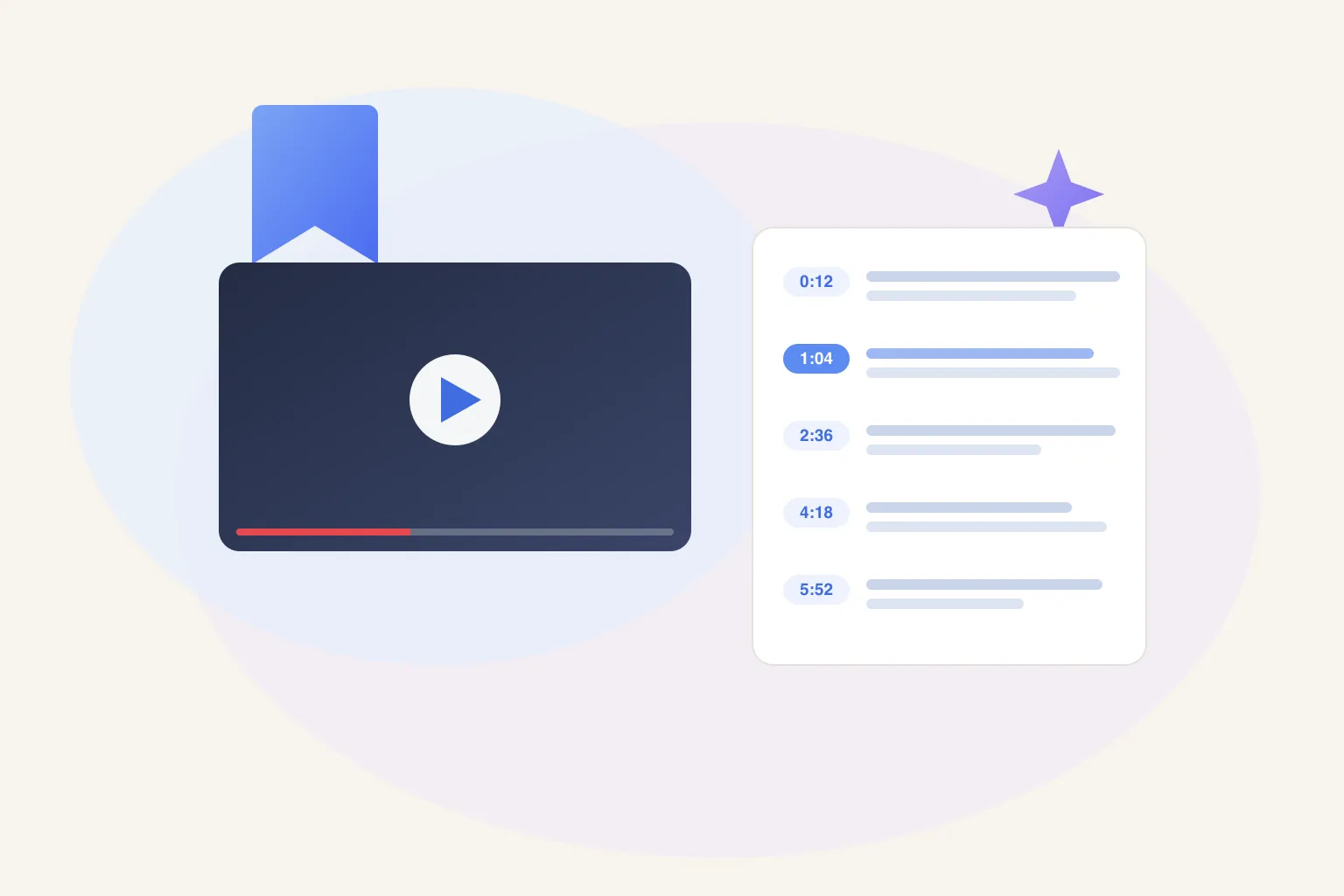
To get the transcript of a YouTube video, click “…more” in the description below the video, then Show transcript — a timestamped panel opens next to the player. That’s fine for grabbing a line or two. If you want the whole transcript copyable in one click and synced to playback, use a browser extension.
A transcript turns a 40-minute video into something you can scan, quote, search, and feed to an AI. This guide walks through all three ways to get one — the free built-in method first — with an honest comparison so you can match the method to how often you actually do this.
How do you get a transcript directly on YouTube?
YouTube has a built-in transcript viewer, and for a single video it’s all you need. It just lives in an odd place — inside the video description, not the player — which is why so many people don’t know it exists.
Here’s the exact path on desktop:
- Open the video and look below it, at the description box.
- Click “…more” at the end of the description preview to expand it.
- Scroll to the bottom of the expanded description and click Show transcript.
- A panel opens with the full transcript as timestamped lines. Click any line and the video jumps to that moment.
- Want plain text instead? Click the ⋮ menu at the top of the panel and toggle timestamps off.
The mobile app hides the same button in the same place: tap the description to expand it, then scroll down to Show transcript.
This method is genuinely fine for what it is. It’s free, there’s nothing to install, and clicking a line to jump around a long video is quietly one of YouTube’s most useful features.
The honest limitations:
- There’s no copy-all button. To copy the transcript, you drag-select lines by hand and paste them out in chunks. On a 10-minute video that’s annoying; on a two-hour podcast it’s miserable.
- The panel is cramped. You’re reading a full transcript through a keyhole a few hundred pixels tall, scrolling forever.
- It depends entirely on captions. The button only appears if the video has them. YouTube auto-generates captions for most videos, but not all — and auto-caption quality varies with audio, accents, and jargon. If the creator uploaded or edited captions, the transcript is noticeably better.
If you need one quote from one video, stop here — this is your method. If you copy whole transcripts with any regularity, keep reading.
Can a transcript website do it faster?
The second option is a transcript-grabber site: you paste the video’s URL into a web page, it fetches the captions, and it shows you the full transcript with a copy button — sometimes with a text-file download too.
The workflow is always the same:
- Copy the video URL from the address bar or the Share button.
- Open a transcript site in another tab.
- Paste the URL, wait for it to process, then copy or download the result.
These sites fix the native panel’s biggest gap: you get the whole transcript in one copyable block instead of hand-selecting chunks. For an occasional full transcript, they do the job.
The honest downsides:
- Ads, everywhere. Free transcript sites are monetized hard, and you’re clicking around banners to reach the copy button.
- It’s another tab, every time. Copy URL, switch tabs, paste, wait, copy, switch back. Do this a few times a day and you’re pasting URLs for a living.
- Longer videos trip them up. Some sites time out or truncate on long podcasts and lectures, exactly the videos where you most need a transcript.
- Same caption ceiling. They read YouTube’s captions too — no captions, no transcript.
Verdict: a reasonable escape hatch when you need copy-all once in a while. As a routine, the friction adds up fast.
What’s the fastest way to copy a full YouTube transcript?
Put the transcript on the watch page itself, so there’s nothing to open and nowhere to go. That’s what the Marqly extension does: a persistent AI card at the top of the sidebar on every YouTube watch page, with a Transcript tab built in.
- Install the Marqly extension — free, available for Chrome, Edge, Firefox, and Safari.
- Open any YouTube video. The Marqly card sits at the top of the sidebar, right beside the player.
- Click the Transcript tab. The full transcript loads next to the video — full height, not a keyhole.
- Press play and the transcript follows along: the current segment highlights as the video plays, so you always know where you are in the text.
- Click Copy once. The entire transcript lands on your clipboard, ready to paste into a doc, a note, or an AI chat.
No second tab, no URL pasting, no chunk-by-chunk selection. The transcript is just there, on every video you open.
It also solves the problem that shows up a week later: finding the transcript again. Marqly adds a Bookmark button to YouTube’s action row, next to Like and Share. Save the video and the transcript is attached to that save in your library — so the talk you half-remember is searchable by what it said, not just by its title. It’s the difference between copying a transcript and actually keeping YouTube videos somewhere you’ll find them.
The same card has two more tabs. Summary streams a TL;DR plus section breakdown on the free tier — here’s how AI summaries of YouTube videos work. Chat lets you ask the video questions and get answers grounded in the transcript; that one’s Pro, with a 7-day free trial, at $48/year — about $4/month billed annually. Here’s what chatting with a YouTube video looks like in practice.
One honest caveat: Marqly reads the video’s captions like everything else does. If a video has no captions at all, no tool can hand you a transcript for it.
Which method should you use?
Match the method to your frequency. Quoting one video a month is a different problem from working with video content every day.
| YouTube built-in | Transcript sites | Marqly extension | |
|---|---|---|---|
| Steps to a transcript | 3 clicks, buried in the description | Copy URL → new tab → paste → wait | Already on the page, 1 click |
| Copy the whole thing at once | ❌ chunk by chunk | ✅ usually | ✅ one click |
| Synced to playback | ⚠️ click a line to jump | ❌ static text | ✅ current segment highlights live |
| Works on every video with captions | ✅ | ⚠️ some fail on long videos | ✅ |
| Keeps the transcript with your saves | ❌ | ❌ | ✅ attached when you bookmark |
The short version:
- You need one quote, once → the native panel. Free, built in, good enough.
- You need a full copy occasionally → a transcript site, if you can stomach the ads and tab-hopping.
- You work with video content regularly — research, writing, studying, content creation → the extension. The transcript is on every watch page before you ask for it, and it stays attached to the videos you save.
What can you do with a transcript once you have it?
The transcript is rarely the end goal — it’s the raw material. Four things people actually do with one:
- Summarize it. A transcript plus an AI model turns an hour of video into a two-minute read. That’s the whole idea behind summarizing YouTube videos with AI — and Marqly’s Summary tab does it on the page, without the copy-paste step.
- Chat with it. Ask “what did they say about pricing?” instead of scrubbing the timeline. Chatting with a YouTube video is transcript-powered question answering.
- Quote it. Writers, researchers, and students pull exact wording with timestamps — much more credible than paraphrasing from memory. Toggle timestamps on when you need the citation, off when you need clean prose.
- Translate it. Paste the transcript into a translator and a lecture in a language you half-follow becomes fully readable. Text translates; video doesn’t.
And the quiet fifth use: search. A saved transcript means you can find a video months later by a phrase someone said in it — which is exactly how AI search across your bookmarks pays off.
Get the transcript without the tab-juggling
The built-in panel will always be there for the occasional quote. But if transcripts are part of how you work, the fastest version is the one that’s already on the page: full transcript beside the player, synced to playback, copied in one click, and attached to the videos you save.
Install the free Marqly extension and open any YouTube video — the Transcript tab is a click away. Free, no credit card.
Related: Summarize YouTube Videos with AI · Chat With YouTube Videos · Save YouTube Videos to Watch Later
Frequently asked questions
- Do all YouTube videos have transcripts?
- No. A transcript only exists if the video has captions. YouTube auto-generates captions for most public videos in supported languages, but not all — music-heavy videos, very new uploads, and some languages miss out. Creator-uploaded captions are the most accurate; auto-generated ones vary with audio quality and accents. If a video has no captions at all, there's no transcript for any tool to pull.
- How do I copy a whole YouTube transcript at once?
- YouTube's built-in panel has no copy-all button — you have to drag-select the lines by hand and copy them in chunks, which is painful on long videos. The one-click route is a browser extension: Marqly loads the full transcript next to the video and copies the entire thing to your clipboard with a single click, ready to paste anywhere.
- Where is the transcript button on YouTube?
- Below the video, inside the description box. Click the '…more' link to expand the description, scroll to the bottom, and click 'Show transcript.' A panel opens with the full transcript as timestamped lines. If the button isn't there, the video has no captions — which means no transcript exists for it on YouTube or anywhere else.
- How do I get a YouTube transcript without timestamps?
- In YouTube's transcript panel, click the three-dot menu at the top and choose the toggle-timestamps option. The lines switch to plain text, which is much cleaner for quoting or pasting into notes. It only changes the display, though — you still have to select and copy the lines by hand, chunk by chunk.
- Are auto-generated YouTube transcripts accurate?
- Usually good enough to search and quote from, but not perfect. Accuracy depends on audio quality, accents, background music, and jargon — technical terms and names get mangled most often. Captions the creator uploaded or edited are noticeably better. For anything you'll publish, spot-check the transcript against the audio before quoting it.
- Is it free to get a YouTube video transcript?
- Yes — all three methods are free. YouTube's Show transcript panel costs nothing, transcript websites are free but ad-supported, and Marqly's transcript view is part of the free extension: full transcript, playback sync, and one-click copy included. Marqly's Pro plan only comes in if you want to chat with videos, after a 7-day free trial.